
If you’ve ever clicked your mouse and felt like your game reacted a split second later, you’ve experienced input lag.
It’s one of those problems that is difficult to identify until they go.
Whether you’re playing competitive shooters like Valorant or Counter-Strike 2, or fast-paced racing games, reduce input lag can make your gameplay feel much more responsive.
One of the tools many PC enthusiasts use is NVIDIA Profile Inspector. This provides you with options in the form of advanced driver settings, which are not found within the standard NVIDIA Control Panel.
While it’s not a magic solution, it can help fine-tune your GPU settings and potentially improve responsiveness when used correctly.
Here’s how to use NVIDIA Profile Inspector to reduce input lag in games, which settings actually make a difference, and what you should steer clear of.
Can NVIDIA Profile Inspector Reduce Input Lag?
Yes, but with realistic expectations.
The tool does not directly “get rid of” latency, but allows you to tweak driver behavior in order to have your GPU spend more time rendering frames and less time queueing them.
Many gamers report improvements in:
- Mouse responsiveness
- Keyboard input
- Camera movement
- Aim precision
- Overall game feel
Games where latency is more obvious usually show the largest increases.
How to Reduce Input Lag Using NVIDIA Profile Inspector?
Step 1: Open NVIDIA Profile Inspector
Launch NVIDIA Profile Inspector.
At the top of the window, select your game’s profile. If your game is not on the list, you can import or create your profile.
Step 2: Enable Low Latency Mode
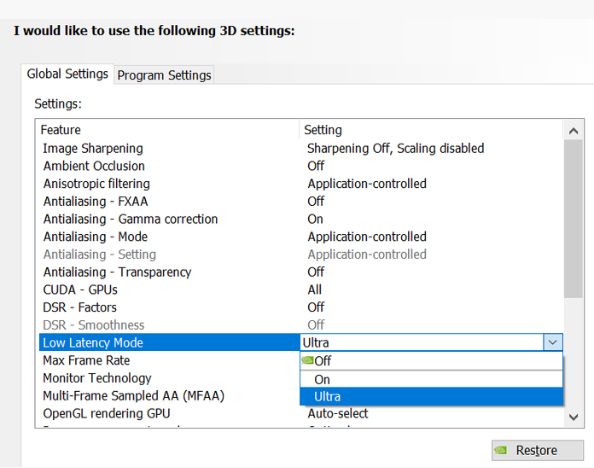
Locate the Low Latency Mode setting.
You’ll usually see:
- Off
- On
- Ultra
For most competitive games:
Recommended: Ultra
Ultra mode attempts to submit frames just before the GPU needs them, reducing the number of queued frames.
When you see some problems or anything weird, go to On and compare.
Step 3: Use Prefer Maximum Performance
Find:
Power Management Mode
Set it to:
Prefer Maximum Performance
This will make sure that the GPU won’t lower clock speed when you are playing and provide consistent performance.
It’s especially useful if you’ve ever noticed small stutters after periods of inactivity.
Step 4: Configure Frame Rate Limiting
Many gamers think that unlimited FPS gives the best experience.
In reality, that’s not always true.
If you have a monitor with a high refresh rate, then lowering your FPS just a little bit under your screen’s refresh rate will give you better game performance.
For example:
Monitor Refresh Rate FPS Limit
144Hz 141 FPS
165Hz 162 FPS
240Hz 237 FPS
360Hz 357 FPS
This is particularly effective when paired with G-SYNC.
Step 5: Disable Vertical Sync
Conventional V-Sync reduces screen tearing, but it frequently adds more input latency.
For competitive gaming:
Recommended:
- V-Sync = Off
If you’re using G-SYNC, many experienced users prefer:
- G-SYNC = Enabled
- V-Sync = On (in NVIDIA Control Panel)
- FPS capped slightly below refresh rate
This combination often provides an excellent balance between smoothness and responsiveness.
Step 6: Reduce Pre-Rendered Frames
Depending on your driver version, you may find a setting related to:
- Maximum Pre-Rendered Frames
If available:
Recommended Value: 1
Lower values can reduce input lag by reducing the number of frames that must be displayed.
Step 7: Disable Triple Buffering
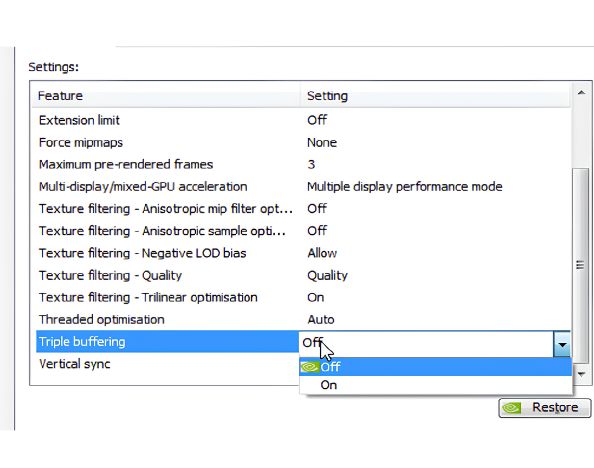
Triple Buffering mainly affects OpenGL applications.
Unless your game specifically benefits from it:
Set Triple Buffering to Off
By doing this, extra frame buffering that can raise latency is avoided.
Step 8: Apply the Changes
After adjusting your settings:
- Click Apply Changes
- Close NVIDIA Profile Inspector
- Restart your game
- Test the results
When troubleshooting, avoid changing several settings at once. To find out what changed, test each modification separately.
Final Thoughts
If you play very fast-paced games, even small improvements in responsiveness will make the game much more comfortable to play.
With the right settings, such as Low Latency Mode, Power Management Mode, and frame rendering settings, you can make optimized game profiles that can give you a faster experience in games.
If you play competitive games where every millisecond matters, learning how to use NVIDIA Profile Inspector can be a useful addition to your performance optimization toolkit.