
If you’ve ever played a game on your laptop only to watch your FPS dip at the worst moment or tried to work on the go while your battery drains faster than expected you know how important power management mode really is. The good news?
With the right tweaks, you can have both: smooth gameplay when you need performance and longer battery life when you’re away from your charger.
I’ll walk you through how I’ve set mine up, using both built-in Windows settings and a little gem called NVIDIA Profile Inspector.
How to Set Power Management Mode for Gaming?
Gamers, in fact, like lag less than they do spoilers, and nothing kills the vibe like helicopter-frame drops.
This usually occurs when your CPU or GPU tries to save power by either down-clocking its speed or simply going to low power mode. Here’s how I fixed it:
Switch Windows to High Performance
- Head to Settings > System > Power & Battery > Power Mode.
- Select High Performance (or Ultimate Performance if your version of Windows allows).
- This stops your system from throttling during intense gaming.
Tweak GPU Settings
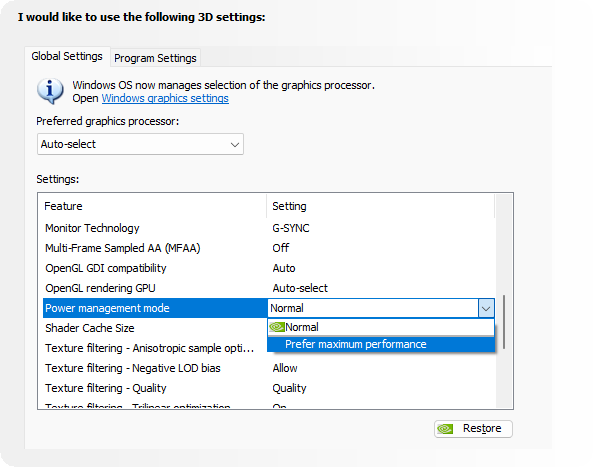
- In NVIDIA Control Panel, under Manage 3D Settings, Power Setting Mode is to Maximum Performance.
- Want more control? Use NVIDIA Profile Inspector.
- Pick your game from the dropdown.
- Scroll down to Power Management Mode.
- Set it to Prefer Maximum Performance.
- Save changes.
- Now your GPU runs at full speed when gaming, not half-asleep trying to save power.
How to Set Power Management Mode for Battery Life?
On the flip side, sometimes you’re traveling, writing, or just streaming a movie. In those cases, performance isn’t everything you want your battery to last. Here’s what works best:
Switch Windows to Balanced or Battery Saver
- The same path applied: Settings > Power & Battery.
- For its balanced profile, go for either everyday use or battery saver when on the go.
Dial Back the GPU
- In NVIDIA Profile Inspector, select your global profile (or create a new one for everyday apps).
- Change Power Management Mode to Adaptive or Optimal Power.
- Adaptive keeps performance available but saves power when idle.
- Optimal Power is more aggressive at conserving energy.
Cut Down on Energy Hogs
- Lower your screen brightness (seriously, it makes a big difference).
- Turn off Bluetooth or Wi-Fi if you don’t need them.
- Close apps running in the background, those sneaky ones can drain battery faster than you’d think.
Final Thoughts
One would always go with high performance while gaming for a smooth FPS and graphics, while going with balanced or battery saver while on battery and traveling to extend battery life.
Just switching between the settings between “power mode” and “eco mode” will give you big benefits with minimal efforts.